
Choose who gets alerts
What it does
Section titled “What it does”A recipient is a destination for alerts, created once at the account level and then attached to any number of monitors. Each monitor has its own set of attached recipients; attaching or detaching a recipient from one monitor doesn’t affect its attachment to any other monitor. The dashboard supports creating webhook, email, Slack, and PagerDuty recipients today — see the Slack alerts guide and Send alerts to PagerDuty for each of those recipient types’ own setup, API, and troubleshooting details.
Every alert waits out a two-minute grace period: an alert goes out when the monitor has stayed down for two minutes, and a monitor that recovers inside that window sends no alert.
Never attach a Slack or PagerDuty destination to a type: "webhook" recipient. Monitive’s webhook payload (event, monitor fields, delivery metadata — see Webhooks) isn’t the shape either destination expects: Slack silently discards it, and PagerDuty’s Events API rejects it outright. For a destination with no native recipient type (Discord, Pushover, ntfy, and others), use the open-source alert-bridge relay instead of pointing a webhook recipient’s URL directly at it.
Set it up in the app
Section titled “Set it up in the app”Create an account-level recipient
Section titled “Create an account-level recipient”- Go to Recipients in the dashboard and click Create recipient.
- Choose Webhook, Email, Slack, or PagerDuty (see Send alerts to PagerDuty), fill in the URL, email address, or integration key, pick which events to notify on (Down, Up, Flapping), and optionally turn on Default for new monitors.
- Click Create recipient.
For a webhook recipient, you’ll see Your recipient secret once — copy it now, since Monitive won’t show it again. For an email recipient, you’ll see Confirmation sent to <address> — alerts don’t start until that confirmation is followed (see the email alerts guide for that lifecycle). A Slack recipient is active immediately, with no secret shown — see the Slack alerts guide.
Attach or detach recipients on a monitor
Section titled “Attach or detach recipients on a monitor”- Open the monitor and find its Recipients section.
- Check or uncheck recipients, then click Save.
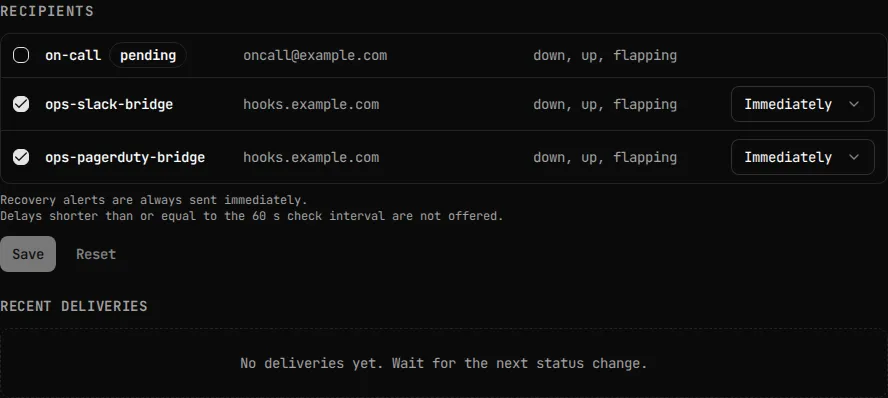
If no recipient ends up attached and the monitor is enabled, the dashboard shows “No one is listening to this monitor” — a safety check that the monitor isn’t silently unmonitored by a human.
Do the same through the API or MCP
Section titled “Do the same through the API or MCP”PUT /api/v1/monitors/{monitorID}/recipients replaces the monitor’s complete recipient set — it is not a merge. Sending just a new recipient’s id detaches every other recipient currently attached to that monitor. Always read the current set first, add to it, and submit the full result:
# 1. Read the monitor's current recipientsCURRENT=$(curl -s https://api.monitive.com/api/v1/monitors/1287/recipients \  -H "Authorization: Bearer $MONITIVE_API_KEY")# -> {"recipients": [{"id": 10, "grace_s": 120}, {"id": 11, "grace_s": 120}]}
# 2. Build the full set from what the GET actually returned — append the#    new recipient (42) to .recipients rather than retyping it, so existing#    attachments survive even if the current set wasn't what you expected.#    Requires jq.BODY=$(echo "$CURRENT" | jq '{recipients: (.recipients + [{id: 42, grace_s: 120}])}')curl -X PUT https://api.monitive.com/api/v1/monitors/1287/recipients \  -H "Authorization: Bearer $MONITIVE_API_KEY" \  -H "Content-Type: application/json" \  -d "$BODY"
Each recipients entry’s grace_s is that two-minute grace in seconds. 120 is the only value the API accepts, and a request that sets any other value is refused. down_delay_s is a deprecated alias for grace_s that the API still accepts and returns.
This read-then-write sequence has no concurrency protection. The PUT carries no version, ETag, or If-Match precondition, so two clients that each read the same list and then submit their own addition can race: whichever PUT lands second silently overwrites the first, and the recipient the first client added is detached again — along with that recipient’s queued deliveries. Edit a monitor’s recipients from one place at a time, and re-read the result after saving to confirm it matches what you intended.
Creating a monitor can also attach recipients directly, through create_monitor’s recipient_ids or recipients arguments (mutually exclusive — specifying both is an error); recipients entries take the same id and grace_s fields as the REST PUT, with grace_s fixed at 120. There’s no MCP tool for changing an existing monitor’s recipients after creation — update_monitor doesn’t take a recipients argument — so use the REST PUT endpoint above, or the dashboard, for that. See Use Monitive through MCP.
For creating a webhook recipient directly through the API, and its payload format and signature verification once it’s attached, see Webhooks.
Detaching a recipient vs. deleting it
Section titled “Detaching a recipient vs. deleting it”Detaching a recipient from one monitor (an updated PUT that no longer includes its id) deletes only that monitor’s own queued (pending/retrying) deliveries for that recipient — its attachment to any other monitor, and that monitor’s own queued deliveries, are untouched. A delivery a worker already claimed just before the detach commits can still complete; whether it’s recorded in the delivery log afterward depends on which operation’s database write lands first, so you may or may not see it in the log either way.
Deleting the account-level recipient (DELETE /api/v1/recipients/{recipientID}) cascades: it detaches the recipient from every monitor that referenced it, and deletes only its pending/retrying deliveries across all of them, the same way a single detach would — just applied everywhere at once. Completed, failed, and superseded delivery history for that recipient survives the deletion; it ages out later under the account’s delivery-log retention window (see Webhooks), and those historical rows can keep referencing the now-deleted recipient’s id.
Plan limits
Section titled “Plan limits”A recipient name is capped at 255 bytes (recipientNameMaxLen in um-api’s internal/api/recipients.go), enforced on the raw bytes before UTF-8 validity is checked — not 255 characters. A name using non-ASCII characters (for example, emoji or CJK text) reaches that ceiling at fewer characters than 255.
See Monitors for monitor count caps, and Webhooks for the account-wide delivery log, which every recipient type shares. Retry eligibility, though, is type-specific: a webhook recipient retries any non-2xx response or timeout (see Webhooks’ retry policy), while a Slack recipient retries only a transport error, 429, or 5xx — any other non-2xx fails immediately (see the Slack alerts guide).
Troubleshooting
Section titled “Troubleshooting”My PUT detached recipients I didn’t mean to remove. You (or another client) submitted a partial recipient set. PUT always replaces the complete set — read the current set first, then submit the full list with your change included, as shown above.
A teammate’s change to a monitor’s recipients disappeared. Two edits raced: both of you read the same list, each added something different, and the second PUT to land won, overwriting the first’s addition. There’s no built-in locking for this — coordinate changes to one monitor’s recipients from one place at a time, and re-read after saving.
A recipient got detached and I still see a delivery for it afterward. That’s the documented race: a delivery a worker had already claimed right before the detach can still complete and get recorded, even though the detach already ran. This is expected, not a bug.
I deleted a recipient and its old deliveries still show up. Deleting a recipient removes only its pending/retrying deliveries. Completed, failed, and superseded history survives until it ages out under the retention window — it isn’t erased on delete.
Your first monitor takes 30 seconds.
Sign in with GitHub, Google, Microsoft, or email, and your first check runs right away. 50 monitors, free, no card.