
Uptime badge
What it does
Section titled “What it does”Every public status page has an SVG badge at /badge.svg under the page’s URL. The badge reads uptime on the left and the monitor’s 30-day uptime and current status on the right, for example 99.97% · up. The right half is green while the monitor is up, red while it’s down, amber while it’s flapping, and gray while it’s paused or its status is unknown. A monitor with no uptime data yet reads no data in place of the percentage.
The page’s embed snippets wrap the badge in a link back to the status page, so a click on the badge opens the full page. The badge renders anywhere an image does: a README, a forum signature, or your own site’s footer.
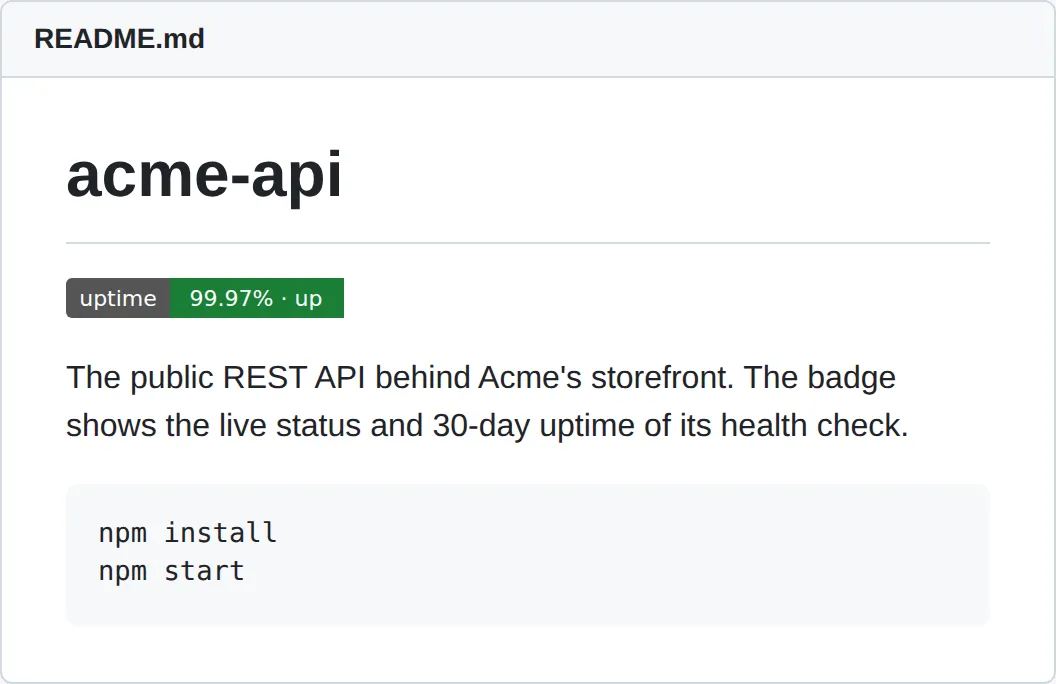
The badge belongs to the status page. It exists only while the monitor’s status page is on, and its URL carries the same token as the page URL.
Set it up in the app
Section titled “Set it up in the app”- Turn on the monitor’s status page, as described in Status page.
- On the monitor’s detail page, in the Status page section, click Open.
- On the public page, scroll to Embed this badge. It previews the badge on a light and a dark background.
- Click Copy next to the Markdown, HTML, or BBCode snippet, and paste the snippet where you want the badge to show.
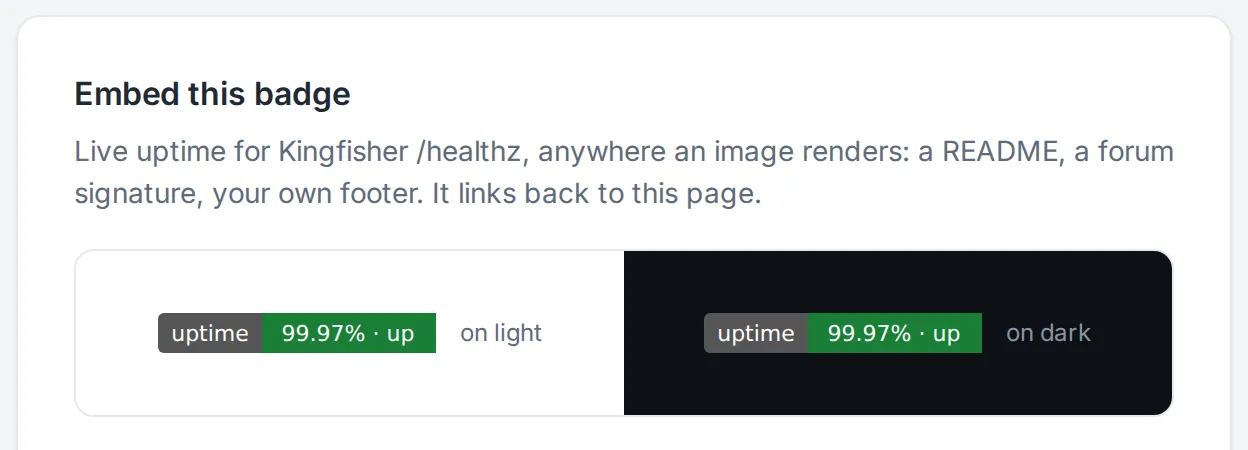
The page omits the BBCode snippet when the page URL can’t be represented safely in that grammar.
Do the same through the API or MCP
Section titled “Do the same through the API or MCP”The badge URL is the status page URL followed by /badge.svg. Read the page URL from the API:
curl https://api.monitive.com/api/v1/monitors/1287/status-page \ -H "Authorization: Bearer $MONITIVE_API_KEY"{"enabled": true, "url": "https://status.monitive.com/sp_0123456789abcdef0123456789abcdef"}If url is null, the page is off. Turn it on first, as described in Status page.
Assign the URL to a shell variable instead of pasting it straight into a command, and replace the value with your own page’s URL. The badge route takes no Authorization header and returns image/svg+xml:
PAGE_URL='https://status.monitive.com/sp_0123456789abcdef0123456789abcdef'curl "$PAGE_URL/badge.svg"The page’s Embed this badge section renders these two snippets for that URL:
<a href="https://status.monitive.com/sp_0123456789abcdef0123456789abcdef"><img src="https://status.monitive.com/sp_0123456789abcdef0123456789abcdef/badge.svg" alt="Uptime status"></a>[](<https://status.monitive.com/sp_0123456789abcdef0123456789abcdef>)There’s no MCP tool for the status page switch, and the badge needs none: once the page is on, the badge URL is public.
Plan limits
Section titled “Plan limits”- One badge per monitor, tied to its single status page. The badge’s label, colors, and text aren’t configurable.
- The percentage covers the same trailing 30-day window as the status page and the uptime API.
- The badge comes from the same cached snapshot as the page, so it can be up to about 70 seconds old at the origin. See the status page’s Plan limits for how the cache works. An embedding site or an image proxy can hold the badge longer.
- Turning the status page off revokes the badge along with the page. The old badge URL can keep answering for about 70 seconds at the origin, and longer where an image proxy cached it.
- Turning the status page on or off requires the account owner role.
Troubleshooting
Section titled “Troubleshooting”The badge shows as a broken image, or its URL returns 404. The status page is off, the monitor was deleted, the account is suspended, or the token is malformed. A paused monitor does not cause this: the badge keeps serving with a gray paused status. Like the page, the badge route is GET-only, so a curl -I probe also returns 404.
The badge broke after I turned the page off and back on. Turning the page back on mints a different token, so the old badge URL is gone. Copy the snippet again from the page.
The badge and the page briefly disagree. All formats (page, feeds, JSON, and badge) carry the same data, and the same Cache-Control policy, only while they’re served from the same cached snapshot. Age won’t confirm that: it’s calculated per response from when each request reached the cache, so it can differ across formats even when they share a snapshot, and an intermediary cache can change it further. A request right before that snapshot expires and another right after can land on different snapshots with no proxy involved.
The badge in a GitHub README lags the page. GitHub serves README images through its own image proxy, camo, which can hold the badge longer than the status page’s cache does. Other sites that proxy or cache images behave the same way. To see the current number, open the status page.
503 with a Retry-After: 5 header. A page build hit its time limit. Retry after the advertised delay. Don’t turn the page off and back on to fix it: that mints a different URL and breaks every embedded badge.
Your first monitor takes 30 seconds.
Sign in with GitHub, Google, Microsoft, or email, and your first check runs right away. 50 monitors, free, no card.