
Send alerts to PagerDuty
What it does
Section titled “What it does”A PagerDuty recipient sends outage and recovery alerts straight to a PagerDuty service through its native Events API v2 — no relay, and no confirmation step: it’s active as soon as you create it. Unlike an email recipient, there’s nothing to confirm before alerts start.
Each monitor event becomes a specific Events API v2 action:
| Event | Action | Severity |
|---|---|---|
down |
trigger | error |
flapping |
trigger, same incident | warning |
up |
resolve | — |
A down or flapping event opens or continues one PagerDuty incident per outage — the dedup key is <monitor_ref>-<outage number>, for example k7q2mx-14-7, so a flapping trigger lands on the same incident a prior down opened, and a new outage on the same monitor always opens a new incident. The up resolve closes it. A delivery retries only on a transport error, a 429, or a 5xx from PagerDuty; anything else is terminal on the first attempt.
If you route PagerDuty Event Orchestration rules on the event’s custom_details, match on custom_details.monitor_ref — it replaces the old custom_details.monitor_id. An incident that opened under the old dedup key before this change won’t auto-resolve; resolve it by hand in PagerDuty.
Set it up in the app
Section titled “Set it up in the app”In PagerDuty:
- Open the service you want alerts to land in.
- Go to Integrations and add Events API v2.
- Copy the integration key it generates.
In the Monitive dashboard:
-
Go to Recipients and click Add recipient.
-
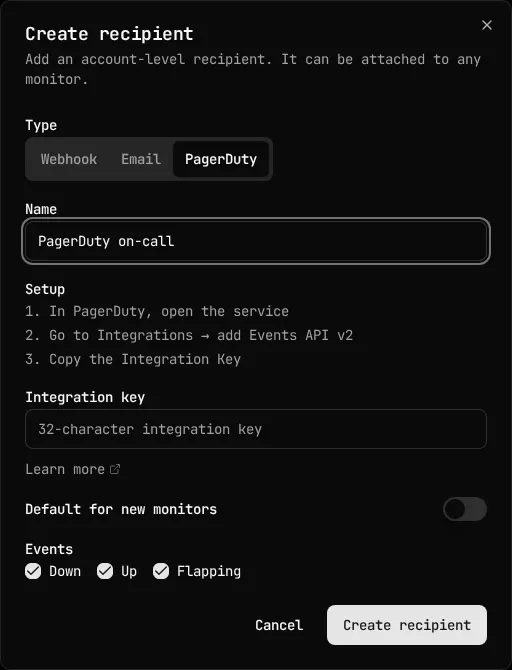
Choose PagerDuty, enter a Name, paste the Integration key, pick which events to notify on, and optionally turn on Default for new monitors.
-
Click Create recipient. There’s no confirmation step — the recipient is active immediately.
-
Click Send test. A successful test shows “Test accepted by PagerDuty for
<name>” — see Troubleshooting for what “accepted” does and doesn’t guarantee. -
Attach the recipient to monitors from each monitor’s Recipients section, the same way you would any other recipient type — see Choose who gets alerts.
Rotate the integration key
Section titled “Rotate the integration key”To rotate the key, change it on the recipient you already have. Editing the key in place keeps the recipient’s monitor attachments, its default setting, and its events, so there’s nothing to copy to a second recipient.
-
In PagerDuty, add a replacement Events API v2 integration on the same service, or on the service you’re moving alerts to, and copy its key. Keep the old integration until step 4.
-
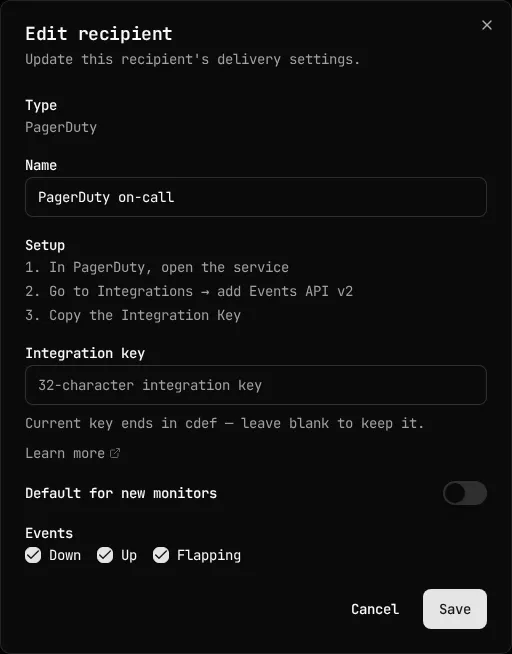
Swap the key on the recipient. In the dashboard, open the recipient’s Edit dialog, paste the replacement key into the integration key field, and save. Through the API,
PATCHthe recipient with the replacement key, read with a silent prompt and sent on stdin, as Do the same through the API or MCP shows.The integration key field in the Edit dialog always starts blank, because Monitive never shows a stored key back to you, masked or otherwise, in an editable field. A hint names the last four characters of the stored key, so you can confirm you’re changing the right recipient. Saving with the field blank keeps the stored key, and there’s no way to clear the key to empty.
-
Click Send test on the recipient. The test sends with the key the recipient stores at the moment you click, and Monitive checks only a key’s shape when you save it (see Troubleshooting), so the test is what proves PagerDuty accepts the replacement. If the test fails, copy the old key from its integration in PagerDuty, put it back on the recipient the same way, and investigate. The old key still works because you haven’t removed its integration yet.
-
After the test passes, look in PagerDuty for incidents still open under the old integration and resolve them by hand: an
upevent sent with the replacement key can’t resolve an incident the old key opened. Then remove the old integration in PagerDuty.
The swap is a cutover, not a gap-free migration. Each key change cancels every alert the recipient has waiting to send or retry, so those alerts don’t go out with either key, and an alert a worker has already started sending finishes with the old key. Schedule the swap outside an active incident when you can: an outage whose down alert gets cancelled this way, for example one still inside the two-minute grace, doesn’t page anyone until the monitor changes state.
Do the same through the API or MCP
Section titled “Do the same through the API or MCP”Create a PagerDuty recipient with POST /api/v1/recipients. The integration key is a credential — avoid passing it as a curl argument, since that both lands it in your shell history and exposes it to other local users through the process list (ps) while the command runs. Read it with a silent prompt and pipe it straight into the request body instead:
read -rsp 'PagerDuty integration key: ' PD_KEY; echoprintf '%s' "$PD_KEY" | jq -Rs --arg name "On-call PagerDuty" \ '{name: $name, type: "pagerduty", config: {integration_key: .}, events: ["down", "up", "flapping"]}' \ | curl -X POST https://api.monitive.com/api/v1/recipients \ -H "Authorization: Bearer $MONITIVE_API_KEY" \ -H "Content-Type: application/json" \ --data-binary @-unset PD_KEYThe 201 response is active immediately and carries no secret — a PagerDuty recipient has nothing to reveal once:
{ "id": 42, "name": "On-call PagerDuty", "type": "pagerduty", "config": {"integration_key": "********cdef"}, "default": false, "status": "active", "events": ["down", "up", "flapping"], "monitor_ids": [], "created_at": "2026-10-20T12:00:00Z", "updated_at": "2026-10-20T12:00:00Z"}config.integration_key is always masked on the way out — ******** plus the last 4 characters of the stored key, or a bare ******** if the stored value doesn’t parse as a valid key. That’s true on every read, not just right after creation, so there’s no API call that returns the key you sent in full again.
Send a test with POST /api/v1/recipients/{id}/test:
curl -X POST https://api.monitive.com/api/v1/recipients/42/test \ -H "Authorization: Bearer $MONITIVE_API_KEY"{ "recipient_id": 42, "type": "pagerduty", "status": "accepted", "response_code": 202, "message": "PagerDuty accepted the test trigger and resolve. PagerDuty processes events asynchronously, so a test incident can remain open; resolve it in PagerDuty if it does."}To rotate the key, send the replacement in PATCH /api/v1/recipients/{id}, and follow Rotate the integration key for the test and cleanup around it. Treat the integration key as a credential: read it with a silent prompt and pipe it into the request body rather than passing it as a curl argument, which would otherwise land it in your shell history and expose it to other local users through the process list:
read -rsp 'Replacement PagerDuty integration key: ' PD_KEY; echoprintf '%s' "$PD_KEY" | jq -Rs '{config: {integration_key: .}}' \ | curl -X PATCH https://api.monitive.com/api/v1/recipients/42 \ -H "Authorization: Bearer $MONITIVE_API_KEY" \ -H "Content-Type: application/json" \ --data-binary @-unset PD_KEYSend the real key you want to switch to, never the masked value a prior response returned — see Troubleshooting. type is immutable: a PATCH that includes "type" always returns 400, even when it matches the recipient’s current type.
Through MCP, create_monitor’s recipients argument can attach an existing PagerDuty recipient by id at monitor-creation time; creating the recipient itself, sending a test, and rotating its key have no MCP tool today — use the REST API or the dashboard for those.
Plan limits
Section titled “Plan limits”A PagerDuty recipient’s name is capped at 255 bytes, the same limit every recipient type shares — see Choose who gets alerts.
Send test is rate-limited to one request per minute per recipient. A faster retry gets a 429.
There’s no PagerDuty-specific cap on how many PagerDuty recipients an account can create.
Troubleshooting
Section titled “Troubleshooting”Create or PATCH fails with 400 and a routing-key-shaped complaint. config.integration_key must be exactly 32 characters of [A-Za-z0-9] — a legacy integration key or a newer orchestration key both match that shape. Anything shorter, longer, or carrying punctuation (including stray whitespace from a copy-paste) is rejected before anything is dispatched to PagerDuty.
PATCHing the masked value back returns 400. The config.integration_key a GET or the dashboard shows you is always masked — * isn’t a character a real PagerDuty key uses, so resending that string is rejected as an invalid key, not silently ignored. Omit config from the PATCH body entirely to keep the existing key; the dashboard’s edit dialog does this for you whenever you leave the key field blank.
A test left an incident open in PagerDuty. A successful test response means PagerDuty accepted both the trigger and the resolve — two 2xxs — not that PagerDuty actually closed the incident. The Events API processes events asynchronously, so a test incident can still be open in your PagerDuty service after a successful test. Resolve it there by hand if it is.
Send test returns 429. Test sends are limited to one request per minute per recipient. Wait a minute and retry.
An outage’s incident isn’t auto-resolving in PagerDuty. Check first that up is in the recipient’s subscribed events — a recipient that doesn’t subscribe to up never reports a recovery, so the incident PagerDuty opened on the down or flapping trigger stays open until something else closes it. If up is subscribed and the incident still isn’t closing, note that deleting or detaching the recipient, rotating config.integration_key, or disabling the monitor does not resolve an incident already open under the old key — only you, in PagerDuty, or PagerDuty’s own auto-resolve setting can close it. That’s why Rotate the integration key has you resolve those incidents by hand before you remove the old integration.
Never attach a PagerDuty integration key to a type: "webhook" recipient. Monitive’s webhook payload isn’t the shape PagerDuty’s Events API expects, and PagerDuty rejects it outright. Create a native type: "pagerduty" recipient instead, through the app or POST /api/v1/recipients — it speaks the Events API v2 format directly, with no relay needed.
Your first monitor takes 30 seconds.
Sign in with GitHub, Google, Microsoft, or email, and your first check runs right away. 50 monitors, free, no card.