
Maintenance windows
What it does
Section titled “What it does”A monitor’s maintenance window silences alerts for incidents that open while it’s active. Checks keep running on the normal interval, and incidents are still recorded — each one flagged maintenance: true on GET /incidents (see Incidents) if it opened during the window.
What’s silenced is the alert, not the incident: no webhook, email, push, or SSE alert goes out for a down or flapping incident that opens inside the window, and its recovery alert is skipped too, but only if every incident that recovery resolves was itself opened during a window. The decision is made once, at the moment an incident opens, with exclusive boundaries at both ends — an incident that opened just before the window started keeps alerting normally. Uptime percentages aren’t adjusted for maintenance time either; a down incident during a window still counts against uptime.
Set it up in the app
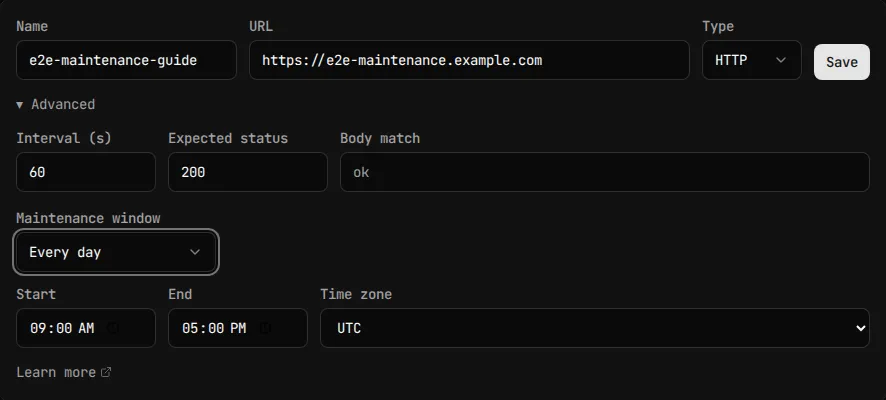
Section titled “Set it up in the app”- Open a monitor and click Edit, then expand Advanced.
- Set Maintenance window to Every day or Once.
- Every day asks for Start, End, and Time zone. It repeats daily in that zone and can span midnight — for example
23:00–03:00. - Once asks for Starts and Ends, a single absolute span.
- Every day asks for Start, End, and Time zone. It repeats daily in that zone and can span midnight — for example
- Click Save.
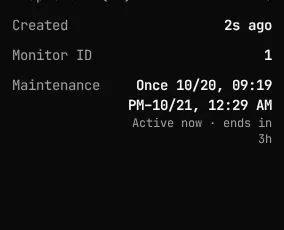
The monitor’s detail page shows a Maintenance row summarizing the window, for example Every day 23:00–03:00 (Europe/Lisbon), with a second line reading Active now · ends in 2h 15m, Starts in 40m, or an ended timestamp, depending on where the window currently sits. Any incident that opened during a window carries a muted Maintenance badge in the incidents list, with a tooltip reading “Alerts silenced: opened during a maintenance window.”
Do the same through the API or MCP
Section titled “Do the same through the API or MCP”Set a daily window:
curl -X PUT https://api.monitive.com/api/v1/monitors/1287 \ -H "Authorization: Bearer $MONITIVE_API_KEY" \ -H "Content-Type: application/json" \ -d '{ "maintenance": { "type": "daily", "start_time": "23:00", "end_time": "03:00", "timezone": "Europe/Lisbon" } }'Or a one-time window, using any RFC3339 offset:
curl -X PUT https://api.monitive.com/api/v1/monitors/1287 \ -H "Authorization: Bearer $MONITIVE_API_KEY" \ -H "Content-Type: application/json" \ -d '{ "maintenance": { "type": "once", "starts_at": "2026-11-01T09:00:00+01:00", "ends_at": "2026-11-01T11:00:00+01:00" } }'The response echoes both timestamps normalized to UTC, regardless of the offset you sent:
{ "monitor": { "maintenance": { "type": "once", "starts_at": "2026-11-01T08:00:00Z", "ends_at": "2026-11-01T10:00:00Z" } }}The dashboard (see the screenshot above) displays once times in your browser’s local time zone, while the API always stores and returns UTC regardless of the offset you sent — don’t expect the clock times shown in the app to match a once window’s UTC values byte-for-byte.
Clear a window back to none:
curl -X PUT https://api.monitive.com/api/v1/monitors/1287 \ -H "Authorization: Bearer $MONITIVE_API_KEY" \ -H "Content-Type: application/json" \ -d '{"maintenance": {"type": "none"}}'Omitting maintenance entirely from a PUT leaves the stored window unchanged — it isn’t the same as clearing it. POST /api/v1/monitors without a maintenance field creates the monitor with {"type":"none"}. See Monitors for the full create/update reference.
Through MCP, both create_monitor and update_monitor take the same maintenance object — ask your agent to put a monitor into maintenance and give it the type and times, and it maps directly to this shape. See Use Monitive through MCP.
Plan limits
Section titled “Plan limits”A monitor has exactly one maintenance window — there’s no way to stack several windows on the same monitor (Maintenance is a single field on models.Monitor, not a list). For a daily window, the time zone must be a real IANA name: an empty string, Local, or anything time.LoadLocation can’t resolve is rejected (validateMaintenanceTimezone in um-api’s internal/api/maintenance.go).
See Monitors for the monitor limits a maintenance window shares with every other monitor setting, such as monitor count caps and the 60-second minimum check interval.
Troubleshooting
Section titled “Troubleshooting”“not allowed for type …” You sent a field that doesn’t belong to the window’s type — for example timezone on a once window, or starts_at on a daily one. Each type accepts only its own fields.
“unknown time zone …” The timezone value isn’t a real IANA zone name. Local and an empty string are both rejected outright, along with anything time.LoadLocation can’t resolve.
“end_time: must differ from start_time” A daily window’s start_time and end_time must differ. Use the midnight-spanning form (for example 23:00–03:00) instead of setting them equal.
“ends_at: must be after starts_at” A once window’s ends_at must come strictly after starts_at. Two timestamps that differ by less than a microsecond are treated as equal and rejected the same way, since that’s PostgreSQL’s timestamptz precision.
“maintenance must not be null” You sent "maintenance": null for the whole field. Omit the field entirely instead — on PUT that leaves the stored window unchanged, and on POST it defaults to {"type":"none"}.
“maintenance.<field>: must not be null” You sent null for a field inside the maintenance object, for example "start_time": null. Every field a given type requires must be a real value.
I still got an alert during the window. The silencing decision is made once, when the incident opens. If the incident opened just before the window started, it alerts normally even though the window became active moments later — the window’s boundary is exclusive, so the start instant itself doesn’t count as inside it.
An old incident is still silent after the window ended. Expected. Once an incident is flagged as having opened during maintenance, it stays silent through to its recovery alert even after the window ends, including across a down-to-flapping handoff.
Uptime still dropped during the window. Expected. A maintenance window only silences alerts — it doesn’t adjust uptime. A down incident during a window counts against uptime the same as any other.
Your first monitor takes 30 seconds.
Sign in with GitHub, Google, Microsoft, or email, and your first check runs right away. 50 monitors, free, no card.