
Team members
What it does
Section titled “What it does”A Monitive account can have more than one member. Each member holds one role — viewer, member, or owner — and roles are cumulative: a member can do everything a viewer can, and an owner everything a member can.
| Role | Can do |
|---|---|
| Viewer | Read monitors, uptime, a monitor’s status-page settings and attached recipients, incidents, account-level recipients, webhook deliveries, the account and its usage, announcements, and push subscriptions. Remove themselves from the account. |
| Member | Everything a viewer can, plus: create, update, delete, and test monitors; create, update, delete, and test account-level recipients and resend a recipient’s confirmation; attach recipients to a monitor; set or clear a monitor’s legacy webhook; subscribe and unsubscribe push endpoints. |
| Owner | Everything a member can, plus: manage API keys; update account settings; read and rotate the feed token; read account events; enable or disable a monitor’s public status page; list members, change a member’s role, and remove any member; create, list, and revoke invites. |
A handful of routes aren’t account-role permissions at all — they depend on who’s signed in, not on a role: accepting an invite addressed to you, linking a second sign-in identity, and switching between accounts you belong to. These need a dashboard session and are covered below, not in the table above.
Set it up in the app
Section titled “Set it up in the app”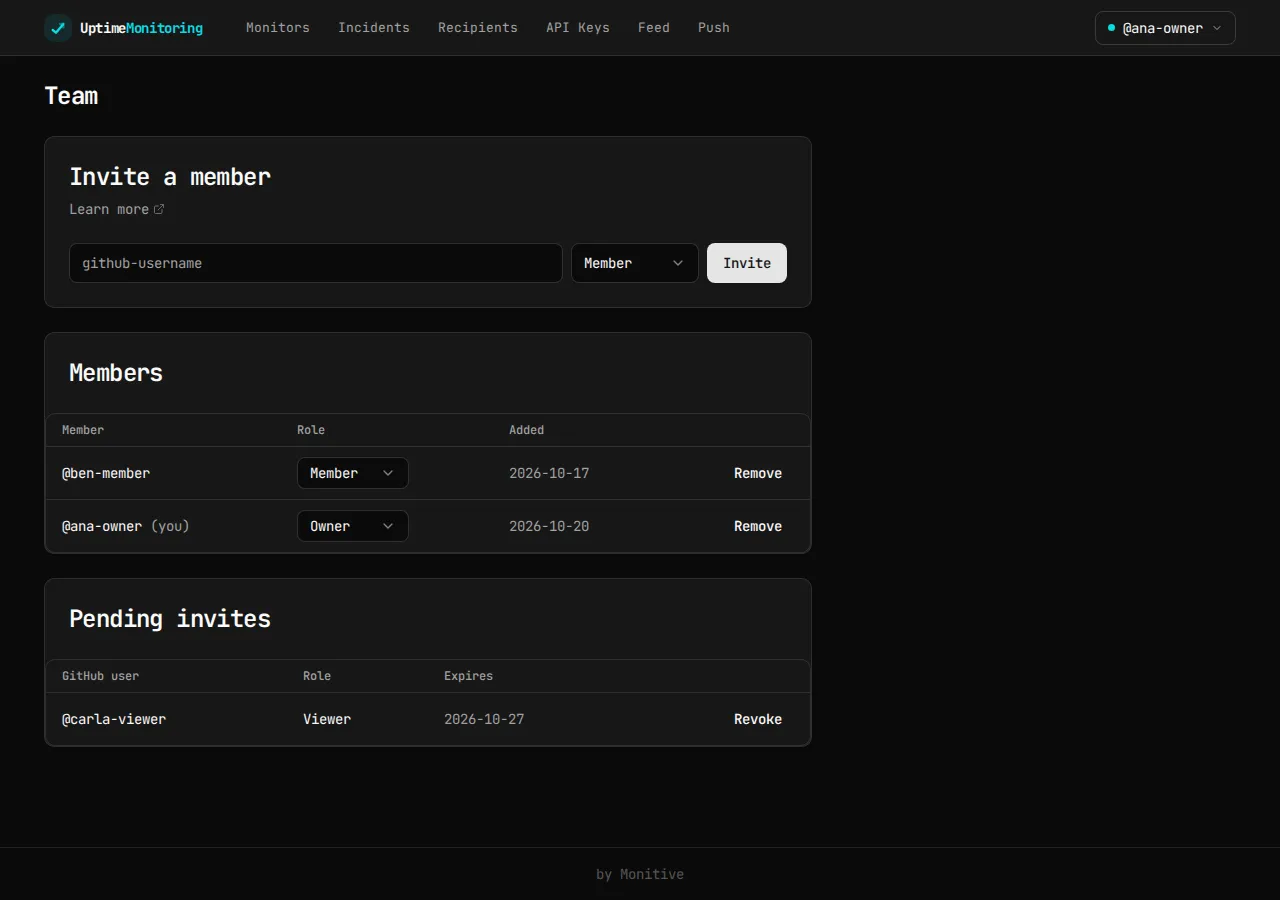
Invite someone
Section titled “Invite someone”Only an owner sees Settings → Team.
- Go to Settings → Team.
- Under Invite a member, enter their GitHub username and pick a role (Member, Viewer, or Owner — defaults to Member).
- Click Invite. The new row appears under Pending invites.
Invites are addressed by GitHub username, not email — the invitee must sign in to Monitive with GitHub, or link a GitHub identity to whichever account they already use, before they can accept.
Accept an invite
Section titled “Accept an invite”If you’re signed in with GitHub already, an invite addressed to your GitHub username shows as a banner — “<account> invited you as <role>” — with an Accept button, on every page.
If you signed up with email or Google, link GitHub first: go to Settings → Connected identities and click Add GitHub. Once linked, the same banner appears and Accept joins you to the inviting account. See Sign in for how identity linking behaves when an identity is already linked elsewhere.
Change a role or remove a member
Section titled “Change a role or remove a member”Under Members, an owner can change any row’s role with its Role select, or click Remove, which asks “Remove this member?” before it takes effect.
There’s no dashboard action for leaving an account you don’t own — Settings → Team is owner-only, so a member or viewer who opens it sees “Only account owners can manage the team.” To leave, ask an owner to remove you. (The API does support removing yourself; see below.) An owner who wants to leave first makes sure another owner exists on the account.
Switch accounts
Section titled “Switch accounts”If you belong to more than one account, use the account switcher in the header to move between them.
Do the same through the API or MCP
Section titled “Do the same through the API or MCP”Accepting an invite, linking a GitHub identity, and switching accounts all require a dashboard browser session — none of them work with an API key or an MCP/OAuth access token. Calling POST /api/v1/me/account with a non-session credential returns 422 {"error":"session_required"}. Invite management and member management, by contrast, work the same with a dashboard session or an owner-level API key.
Invite someone (owner only):
curl -X POST https://api.monitive.com/api/v1/account/invites \ -H "Authorization: Bearer $MONITIVE_API_KEY" \ -H "Content-Type: application/json" \ -d '{"github_username": "jdoe-eng", "role": "member"}'# -> 201 {"id": 4, "github_id": 583231, "github_username": "jdoe-eng",# "role": "member", "created_at": "...", "expires_at": "..."}List members and pending invites:
curl https://api.monitive.com/api/v1/account/members \  -H "Authorization: Bearer $MONITIVE_API_KEY"# -> [{"user_id": 1, "role": "owner", "github_username": "ana-owner", "created_at": "..."},#     {"user_id": 2, "role": "member", "github_username": "jdoe-eng", "created_at": "..."}]# email appears on a row only when you're an owner looking at another owner's row.
curl https://api.monitive.com/api/v1/account/invites \  -H "Authorization: Bearer $MONITIVE_API_KEY"
Change a member’s role, or remove a member (owner only for anyone but yourself):
curl -X PATCH https://api.monitive.com/api/v1/account/members/2 \  -H "Authorization: Bearer $MONITIVE_API_KEY" \  -H "Content-Type: application/json" \  -d '{"role": "viewer"}'# -> 204, or 409 {"error":"last_owner"} demoting the sole remaining owner
curl -X DELETE https://api.monitive.com/api/v1/account/members/2 \  -H "Authorization: Bearer $MONITIVE_API_KEY"# -> 204. Any role can remove itself; removing someone else needs owner (403#    "forbidden" otherwise).
This read-then-write pair has no concurrency protection, the same as other account-mutating endpoints — see Choose who gets alerts for the general pattern. If two owners change the same member’s role at once, the second request to land wins silently; re-read the member list after a change to confirm it took.
Revoke a pending invite:
curl -X DELETE https://api.monitive.com/api/v1/account/invites/4 \ -H "Authorization: Bearer $MONITIVE_API_KEY"# -> 204, or 404 {"error":"invite_not_found"}MCP has no team management tools. MCP covers monitor operations, listing incidents, and account-status reads — see Use Monitive through MCP. Invite, member, and role management are REST- and dashboard-only.
The public OpenAPI spec doesn’t document the members endpoints yet (GET/PATCH/DELETE /api/v1/account/members...) — only the invite and /me routes are in the spec. The shapes above are accurate as of this guide’s publication; check the live spec for the invite and /me routes.
Plan limits
Section titled “Plan limits”Monitive doesn’t cap the number of members or pending invites on an account. Monitor counts, however, are per account and shared by every member regardless of role — see Monitors for those caps.
An invite expires 7 days after it’s created; create a new one if it lapses. A GitHub username can be at most 39 characters, using only letters, digits, and single internal hyphens (no leading, trailing, or doubled hyphens) — the same rule GitHub itself enforces on usernames.
Troubleshooting
Section titled “Troubleshooting”“That isn’t a valid GitHub username” / 400 invalid_github_username. The username has to be 1–39 ASCII letters or digits with single internal hyphens only — no leading or trailing hyphen, no doubled hyphens, no spaces. The API doesn’t trim surrounding whitespace, so a pasted value with a trailing space fails even if it looks right.
404 github_user_not_found. GitHub reports no account with that username. GitHub’s lookup is case-insensitive, so a capitalization difference isn’t the cause — check whether the account exists or was renamed.
502 github_error. GitHub’s API didn’t respond as expected. Retry; this isn’t something Monitive can control.
409 member_exists. That GitHub user already belongs to this account.
409 invite_exists. There’s already a live invite for that GitHub user — check Pending invites instead of sending another.
409 last_owner on a role change or removal. You’re trying to demote or remove the account’s only owner. Promote another member to owner first.
409 member_has_api_keys when removing a member. That user created (or last rotated) an API key that’s still active — only owners create keys, so this usually means a demoted former owner. The key list doesn’t show who created each key, so identify theirs by label or key prefix and delete it (or rotate it and wait 5 minutes for the old key to expire) before removing them. If an integration depends on that key, create and verify its replacement first.
403 forbidden removing a member. Only an owner can remove someone other than themselves.
422 session_required on /me/account, or 403 session_required on identity linking. You called it with an API key or MCP token. These need a dashboard session — sign in at my.monitive.com and use the account switcher or Settings instead.

Your first monitor takes 30 seconds.
Sign in with GitHub, Google, Microsoft, or email, and your first check runs right away. 50 monitors, free, no card.