
Report emails
What it does
Section titled “What it does”Monitive emails each member a weekly and a monthly uptime report for every account they belong to. Reports are separate from outage alerts, which go to the recipients attached to each monitor — see Send alerts to email.
Both reports are on by default for every member of every account. The setting is per person and per account: turning a report off for one team account doesn’t change it for any other account you’re in, or for anyone else on that team. The unsubscribe link at the bottom of a report changes the same setting as the switch in Settings.
When each report arrives. All times are UTC.
- Weekly covers the previous ISO week, from Monday 00:00 to the next Monday 00:00 UTC. It’s prepared at 07:00 UTC on Monday and sent shortly after.
- Monthly covers the previous calendar month. It’s prepared at 08:00 UTC on the 1st and sent shortly after.
If a report can’t be prepared on time, for example during an outage or because the account didn’t qualify yet, preparation is retried until 07:00 UTC on Tuesday for the weekly report, or 08:00 UTC on the 2nd for the monthly one. A copy that hasn’t started sending by that cutoff isn’t sent. A copy that started sending before the cutoff can still arrive a little after it.
Subjects look like Monitive weekly report 40 / 2026 and Monitive monthly report September 2026.
Who gets one. An account’s report is prepared only if, at that moment, the account isn’t suspended and has at least one enabled monitor that was created before the period ended. When the report is prepared, it lists every member who has that report’s switch on and an email address on their user. Turning a switch on after that moment doesn’t add you to that period’s report. Just before each copy is sent, your switch and your membership are checked again, so your copy is dropped if you turned the switch off or left the account after the report was prepared.
What a report contains. Each report is an HTML email with a plain-text alternative:
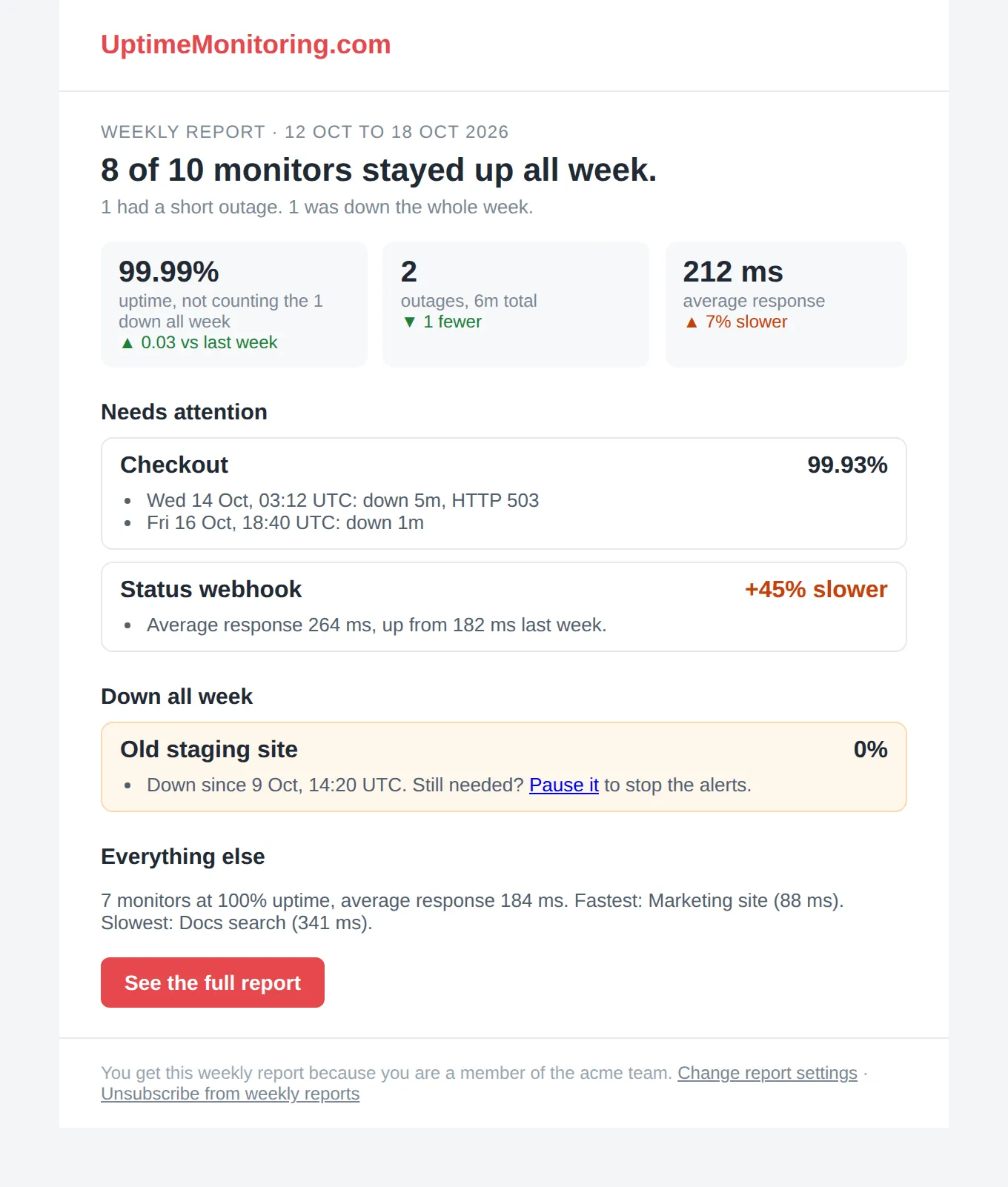
- A top line naming the period, for example
WEEKLY REPORT · 28 SEP TO 4 OCT 2026. - A headline such as
N of M monitors stayed up all week.(orall month.in the monthly report). - Three figures, each compared with the previous period: uptime, outages with their total downtime, and average response time. A figure shows
N/Awhen there’s no data to compare. - Needs attention: monitors that had an outage, or whose average response time rose 30% or more compared with the previous period. Each outage shows its start time, its duration, and, when known, a reason such as
HTTP 503. - Down all week or Down all month: monitors that were down for the whole period. Each one shows when it went down, as “Down since …”, and a Pause it link that opens the monitor in the dashboard. Pausing it there stops both its checks and its alerts; see the
enabledfield in Monitors. These monitors are left out of the three figures. - Everything else: how many monitors stayed at 100% uptime, with their average, fastest, and slowest response times.
- A See the full report button that opens the dashboard. Only the HTML version has it.
- A footer that reads
You get this weekly report because you are a member of the <name> team., naming the team by its owner’s GitHub username (the sentence is generic when the owner has none). Below it are a Change report settings link that opens Settings in the dashboard, and anUnsubscribe from weekly reportsorUnsubscribe from monthly reportslink.
This weekly report is for a fictional account with 10 monitors: one had two outages, one got slower, and one was down all week.
Where reports go. Reports go to the email address on your signed-in identity — for example, the address you sign in with by email, or one you linked under Settings → Connected identities. There’s one address per person, so every account’s reports go to that same address. If your user has no email address, you get no reports, even with both switches on. The Report emails card doesn’t warn you about this. To fix it, add an address under Settings → Connected identities, as described in Sign in.
Set it up in the app
Section titled “Set it up in the app”- Sign in at my.monitive.com. If you belong to several accounts, make sure the account you want to change is the current one — the card names it.
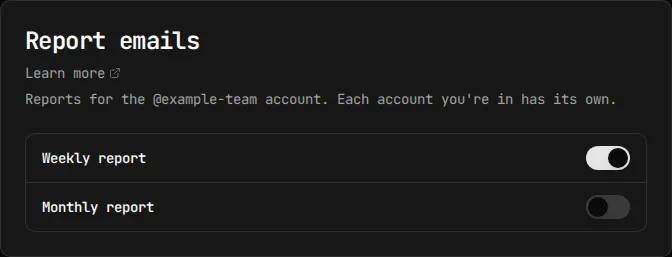
- Go to Settings and find Report emails, below Connected identities. The card reads “Reports for the
<account>account. Each account you’re in has its own.” - Turn Weekly report or Monthly report on or off. The switch moves only after the change is saved, and a toast confirms it, for example “Weekly report turned off.”
- Repeat in each account whose reports you want to change.
Unsubscribe from an email. Opening the unsubscribe link in a report shows “Stop sending Weekly uptime report emails for this team? Outage alerts and your other report subscription are not affected.” with an Unsubscribe button. For a monthly report’s link, the page says Monthly. Your mail client’s built-in unsubscribe button does the same thing without showing the page. Either way, only that report type turns off, and only for that account — it’s the same switch as in Settings. To turn the report back on, use Settings. The card shows an unsubscribe the next time you load Settings.
Do the same through the API or MCP
Section titled “Do the same through the API or MCP”There’s no API-key or MCP equivalent. The dashboard calls GET /api/v1/me/reports and PATCH /api/v1/me/reports, and both accept only a signed-in dashboard session. Calling either one with an API key or an MCP/OAuth access token returns 403 {"error":"session_required"}: an API key is shared across the whole account, so it can’t change one person’s mail settings. No MCP tool covers reports. See API keys for key details and Use Monitive through MCP for the tools that exist.
For reference, both methods return this shape:
{ "account_id": 42, "weekly": true, "monthly": false, "email": "jane@example.com", "deliverable": true}email is null when your user has no address, and deliverable is true exactly when email isn’t null. PATCH takes weekly, monthly, or both, each a JSON boolean, and only the fields you send change. Any role can read and change their own setting. The request is rejected with 400 and one of these messages:
unknown field "<name>"for any other key.at least one of weekly or monthly is requiredfor an empty object,{}.weekly must be a booleanormonthly must be a booleanfornull, a string, or a number.
Plan limits
Section titled “Plan limits”Reports have no plan limit. They’re on by default for every member of every account, and they don’t count against the daily cap on email alerts — see Send alerts to email.
Needs attention lists up to 25 monitors, with up to 5 outages each. Down all week and Down all month list up to 25 monitors. Anything beyond a cap is replaced by one line that counts the rest and points you to the dashboard. Each part of the email is also kept under 100 KiB, by dropping the last entries in those lists if needed.
Each report goes to each person at most once per period, and a failed send isn’t retried.
Troubleshooting
Section titled “Troubleshooting”I have a switch on but get no reports. Check these causes:
- Your user may have no email address. The card doesn’t warn about this. Add one under Settings → Connected identities — see Sign in.
- When the report was prepared, the account may have had no enabled monitor created before the period ended, or it may have been suspended.
- You may have turned the switch on after that period’s report was prepared.
I turned a report on, but this week’s (or this month’s) didn’t arrive. A report lists its members when it’s prepared, normally at 07:00 UTC on Monday or 08:00 UTC on the 1st. A switch turned on after that takes effect from the next period.
I turned a report off but still got one. Turning a switch off stops your copy of any report that hasn’t started sending yet, including the current period’s, because each copy is checked again just before it’s sent. A copy that had already started sending when you switched it off can still arrive.
I unsubscribed from an email, but Settings still shows the switch on. The card loads once when you open Settings. Reload the page.
I unsubscribed but still get reports from another team. Expected. Each account has its own setting. Unsubscribe from that team’s email, or switch to that account and turn the report off in Settings.
“Too many attempts. Try again in Ns.” Wait the number of seconds shown, then try again.
“Couldn’t save report email settings. Try again.” Your change may not have been saved. Check whether the switch moved before you try again. After a network or server error, the card reloads, so the switches show what’s actually saved.
“Couldn’t load report email settings.” or “Not available yet.” Click Retry.

Your first monitor takes 30 seconds.
Sign in with GitHub, Google, Microsoft, or email, and your first check runs right away. 50 monitors, free, no card.